
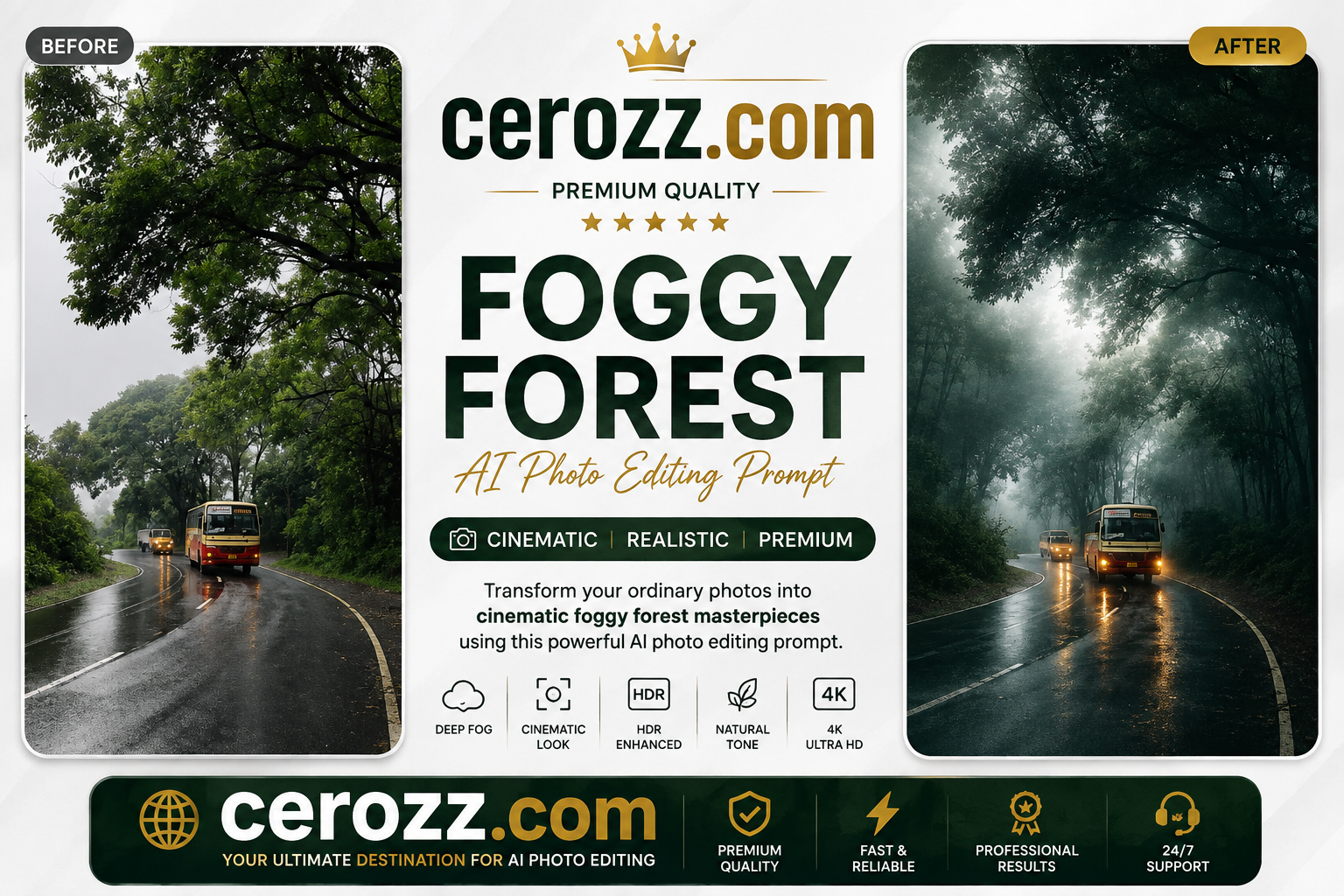
Do you love those beautiful, misty forest photos that look like they’re straight out of a movie? You know the ones – where the fog slowly drifts between the trees, soft light beams cut through the mist, and everything looks mysterious and magical.
Well, here’s the good news – you can now create this exact look using AI, without any professional photography skills.
This guide will walk you through everything you need to know about the Foggy Forest AI Photo Editing Prompt. I’ll explain what it does, how to use it, where it works best, and how to avoid common mistakes.
By the end, you’ll be ready to turn your ordinary photos into stunning foggy forest masterpieces.
What Does This AI Prompt Do?
This prompt is designed to transform a simple photo into a rich, atmospheric foggy forest scene. It works with AI image tools that can understand detailed instructions and apply advanced changes to your photos.
Here’s What Happens When You Apply This Prompt:
- Adds dense white fog across the entire scene for a mysterious mood
- Applies cinematic colors with deep green, teal, moss green, and earthy brown shades
- Enhances trees and plants to look like a lush enchanted forest
- Adds soft light rays breaking through the mist for extra depth
- Boosts image quality to ultra-high-definition 4K resolution
- Improves shadows and highlights for better dynamic range
- Gives a moody, dreamy, professional look to your photo
The best part? The AI does all this automatically. You just need to provide a good photo and use the right prompt.
Why Is This Trend So Popular?
Foggy forest photos have always been popular, but AI has made them accessible to everyone. Here’s why this trend is taking off:
It Looks Like a Movie Scene
The combination of fog, soft light, and rich colors creates a cinematic feel that grabs attention. Your photos will look like they were shot by a professional cinematographer.
No Expensive Equipment Needed
You don’t need a professional camera or editing software. A simple photo from your phone can be transformed into something amazing.
It Works for Many Types of Photos
Whether you have a travel photo, a nature shot, or even a portrait, this prompt can add that magical forest feel.
Perfect for Social Media
These dreamy, atmospheric images perform really well on platforms like Instagram, Pinterest, and Facebook. People love scrolling through beautiful, cinematic photos.
Who Should Use This Prompt?
This prompt is for everyone. You don’t need to be a professional photographer or editor. Here’s who will find it useful:
Photography Enthusiasts
If you love taking photos but don’t have expensive gear, this prompt helps you create professional-looking images.
Content Creators
Bloggers, YouTubers, and social media influencers can use these stunning images to grab attention and boost engagement.
Travel Bloggers
Make your travel photos look magical and dreamy. Your audience will love scrolling through your beautiful forest shots.
Digital Artists
If you’re into digital art and fantasy themes, this prompt is a great addition to your creative toolkit.
Beginners
Even if you’ve never edited a photo before, you can achieve amazing results. The AI does all the heavy lifting for you.
Small Business Owners
Need unique visuals for your brand? These cinematic photos can help your business stand out.
Step-by-Step Guide: How to Use This Prompt
Using this prompt is simple. Just follow these steps:
Step 1: Choose Your Base Image
Pick a photo that already has some forest, trees, or natural greenery. This helps the AI understand the scene better.
Step 2: Copy the Complete Prompt
Scroll down to the full prompt section and copy the entire text exactly as written.
Step 3: Open Your AI Tool
You can use ChatGPT with image generation features, or any other AI image editing platform that supports detailed text prompts.
Step 4: Upload Your Image
Upload the photo you selected into the AI tool’s image upload option.
Step 5: Paste the Prompt
Paste the copied prompt into the text or chat box, right after uploading your image.
Step 6: Generate and Review
Let the AI process the image. Once done, check if the fog, colors, and lighting match what you expected.
Step 7: Download and Share
Save your final image and share it on your social media, blog, or portfolio.
The Complete Foggy Forest Prompt
Here is the complete prompt you can copy and use:
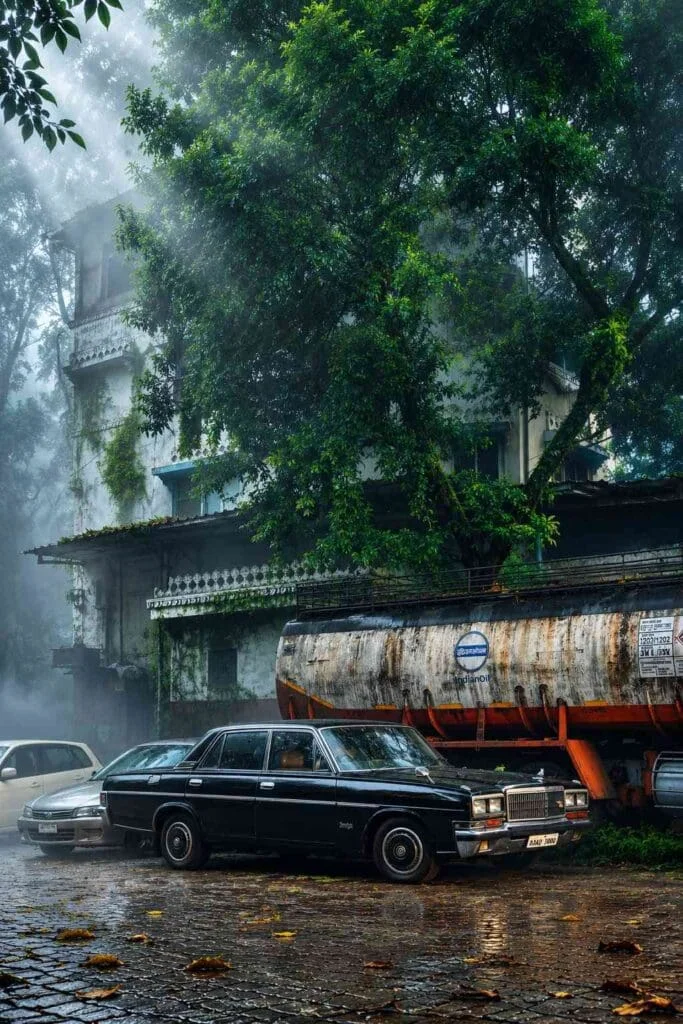
Transform this image into a breathtaking ultra-realistic foggy forest masterpiece. Add dense natural white fog covering the entire environment, creating a mysterious and cinematic atmosphere.
Apply rich forest-inspired color grading with deep emerald green, dark teal, moss green, and earthy brown tones. Enhance the trees, foliage, and background elements to resemble a lush enchanted forest hidden in the mist.
Introduce soft volumetric light rays subtly penetrating through the fog, creating depth and realism. Increase overall image quality to ultra-high-definition 4K resolution with razor-sharp details, HDR enhancement, realistic textures, balanced contrast, and natural color harmony.
Improve shadows, highlights, and dynamic range while maintaining a realistic appearance. Add a moody woodland aesthetic, dreamy fog layers, atmospheric perspective, and professional cinematic photography grading. The final result should look like a premium DSLR forest photograph captured during a cold mist.
Best Tips for Better Results
Here are some helpful tips to get the most out of this prompt:
Use High-Resolution Images
The better your original photo, the better your final result will be. Try to use clear, sharp images.
Choose Photos with Trees or Greenery
The prompt works best when there are already some natural elements in the photo. Trees, plants, and greenery help the AI create a realistic forest scene.
Avoid Very Dark or Blurry Photos
If your original photo is too dark or blurry, the AI might struggle to add detail. Start with a reasonably clear image.
Try Different Photos
Test the prompt on multiple images to see varied outcomes. Some photos will work better than others.
Keep the Original Aspect Ratio
Don’t crop or change the shape of your photo before editing. Let the AI work with the original composition.
Check Lighting Direction
Pay attention to where the light is coming from in your original photo. This helps the AI add realistic light rays.
Common Mistakes to Avoid
Many users make small errors that reduce the quality of their final image. Avoid these mistakes:
❌ Using Low-Quality Images
Images that lack detail and sharpness won’t give you good results. Always start with the best quality photo you have.
❌ Skipping Parts of the Prompt
When copying the prompt, make sure you get every word. Missing even a small part can change the result.
❌ Choosing Photos with No Trees
If there are no natural elements in your photo, the foggy forest effect won’t look right.
❌ Expecting Instant Perfection
Sometimes you need to try the prompt more than once. Don’t give up if the first result isn’t perfect.
❌ Using the Same Prompt on All Photos
Different photos might need slightly different prompt adjustments. Be willing to experiment.
Best Images to Use with This Prompt
Not every photo works equally well. Here’s what works best:
Photos with Tall Trees
Images with tall trees and dense foliage give the AI plenty to work with.
Pictures in Parks or Hills
Photos taken in natural settings with greenery and depth work really well.
Images with Natural Lighting
Even if the lighting is soft or weak, it helps the AI create realistic fog and light rays.
Landscape Shots
Photos with a clear horizon and depth benefit the most from the fog and color grading.
Pictures with Pathways
Images featuring trails or pathways through greenery create a more dramatic scene.
Nature Photos Without Buildings
The prompt works best with photos that don’t have many urban structures.
Before and After – What Changes?
Here’s what you can expect your photo to look like:
Before Editing:
- Flat, ordinary colors with little mood
- Clear, sharp visibility with no atmosphere
- Basic lighting without cinematic depth
- Standard resolution and everyday appearance
After Editing:
- Rich green, teal, and earthy color tones
- Dense fog creating mystery and depth
- Soft light rays adding cinematic drama
- Ultra-sharp, 4K-level detail and clarity
The transformation is dramatic. Your photo will look like it was taken by a professional on a cold, misty morning.
Where Can You Use These Photos?
These cinematic photos are perfect for many purposes:
Social Media
Share on Instagram, Facebook, and Pinterest. These dreamy images get amazing engagement.
YouTube Thumbnails
Create eye-catching thumbnails for your travel, nature, or storytelling videos.
Personal Albums
Add artistic value to your old photos. Transform them into something special.
Wedding Photos
Create romantic, misty wedding photos that look like they’re from a fairytale.
Blog Banners
Use these images as headers for your travel, nature, or fantasy blog posts.
Digital Art Portfolio
Add professional-looking pieces to your creative portfolio.
Print Materials
Use for posters, calendars, or wall art. The high quality makes them print-ready.
Frequently Asked Questions
Q: What type of photos work best with this prompt?
Photos with trees, greenery, or natural landscapes work best since the AI enhances existing forest elements.
Q: Can I use this prompt on a phone-clicked photo?
Yes, even smartphone photos can work well if they are clear and reasonably well-lit.
Q: Do I need any special software to use this prompt?
No, you just need access to an AI tool that supports image uploads and text prompts.
Q: Is this prompt free to use?
The prompt itself is free to copy and use. Your AI tool may have its own usage costs.
Q: Can I edit the prompt wording myself?
Yes, you can tweak certain words, but keep the core instructions intact for best results.
Q: How long does the editing process take?
This depends on your AI tool, but most results generate within a few minutes.
Q: Can I use this prompt for commercial projects?
Yes, many creators use such AI-edited images for blogs, social media, and marketing materials.
Q: Will the fog effect look fake?
If used correctly, the effect looks realistic and cinematic, not overly artificial.
Q: Can I use the same prompt on different types of photos?
Yes, you can use it on nature photos, portraits, and landscape shots. Results will vary based on the original image.
Q: Where can I find more prompts like this?
You can explore more creative AI photo editing prompts online. Experiment with different styles to find what works for you.
Final Thoughts
Creating stunning foggy forest photos no longer requires expensive cameras or professional editing skills. With this AI photo editing prompt, anyone can transform their photos into cinematic, mysterious woodland scenes.
The key is to start with a good photo, use the prompt correctly, and be patient with the process. Don’t be afraid to experiment with different images and slight adjustments to the prompt.
Whether you’re a photography enthusiast, a content creator, or just someone who loves beautiful images, this prompt will help you create something truly special. So go ahead – pick your photo, use the prompt, and see the magic happen.
Happy editing! Share your foggy forest masterpieces with the world!