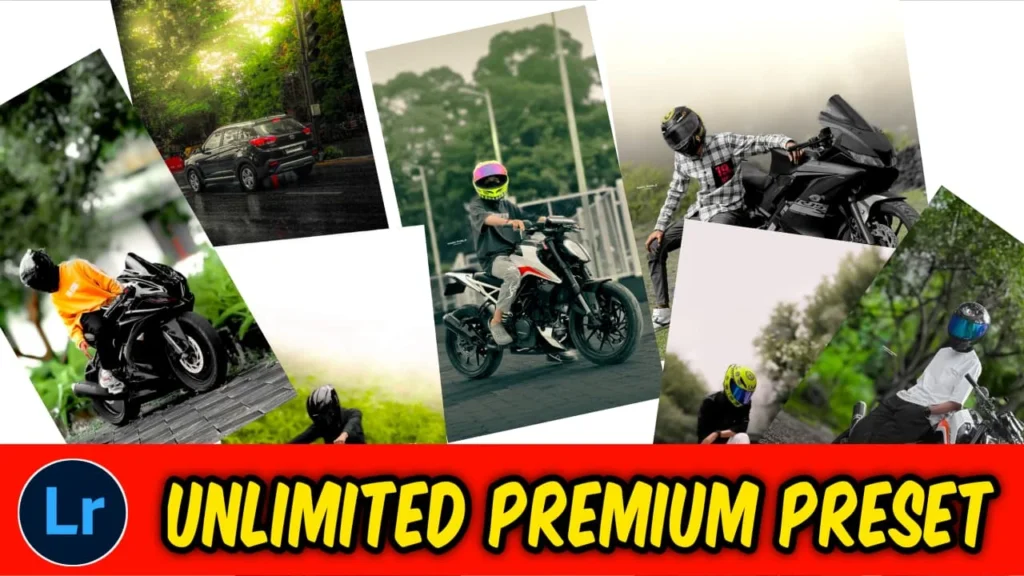
What Are Lightroom Mobile Presets?
Presets are saved editing settings that automatically adjust photo elements like:
- Exposure
- Contrast
- Highlights and shadows
- Colors
- Tone curves
- Grain
- Sharpening
Think of presets as powerful custom filters. Instead of editing each photo from scratch, you apply a preset and get a professional look instantly.
Why Use Lightroom Mobile for Preset Editing?
Here’s why creators love Lightroom Mobile:
1. Professional Results on Your Phone
You don’t need a computer to create high-quality edits. Lightroom Mobile has advanced tools just like the desktop version.
2. Speed and Efficiency
Edit many photos in seconds. This helps:
- Bloggers
- Travel photographers
- Instagram creators
- Small business owners
3. Consistent Aesthetic
Presets help keep your social media feed looking unified and professional. This builds a recognizable brand identity.
How to Install Presets in Lightroom Mobile
Installing presets is easy:
- Download the preset file (DNG or XMP format)
- Open it in Lightroom Mobile
- Tap the three dots in the top corner
- Select Create Preset
- Name and save it
Now you can apply it to any photo with one tap.
How to Edit Photos Using Presets (Step-by-Step)
Step 1: Choose the Right Photo
Presets work best on well-lit images with good composition.
Step 2: Apply the Preset
Tap the preset and see the transformation instantly.
Step 3: Fine-Tune the Settings
Presets are starting points. Adjust:
- Exposure for brightness
- White balance for accurate skin tones
- Shadows and highlights for detail
- HSL sliders for precise color control
Step 4: Export in High Quality
Use maximum resolution for clear, sharp images.
Popular Preset Styles in 2026
Here are trending Lightroom Mobile preset styles:
- Warm golden tones
- Moody dark edits
- Bright airy lifestyle look
- Cinematic color grading
- Vintage film aesthetic
- Clean minimal tones
Choose a style that matches your brand and audience.
Tips for Creating Your Own Presets
Want a unique look? Create your own signature style.
- Edit one photo manually
- Focus on tone curve and color grading
- Save settings as a preset
- Test on different images and refine
- Develop a consistent editing style
Common Mistakes to Avoid
- Overexposing skin tones
- Oversaturating colors
- Ignoring white balance
- Using the same preset without adjustments
- Forgetting to sharpen before exporting
Remember: Presets enhance your photos—they shouldn’t overpower them.
Final Thoughts
Lightroom Mobile presets are powerful tools for photographers and bloggers who want fast, professional edits from their phones. Whether you download presets or create your own, consistency and subtle refinement are key.
With practice, you’ll turn ordinary photos into stunning visuals that grab attention and elevate your blog’s aesthetic.
Download All Presets
Click below to get all presets:
Download All Lightroom Presets